
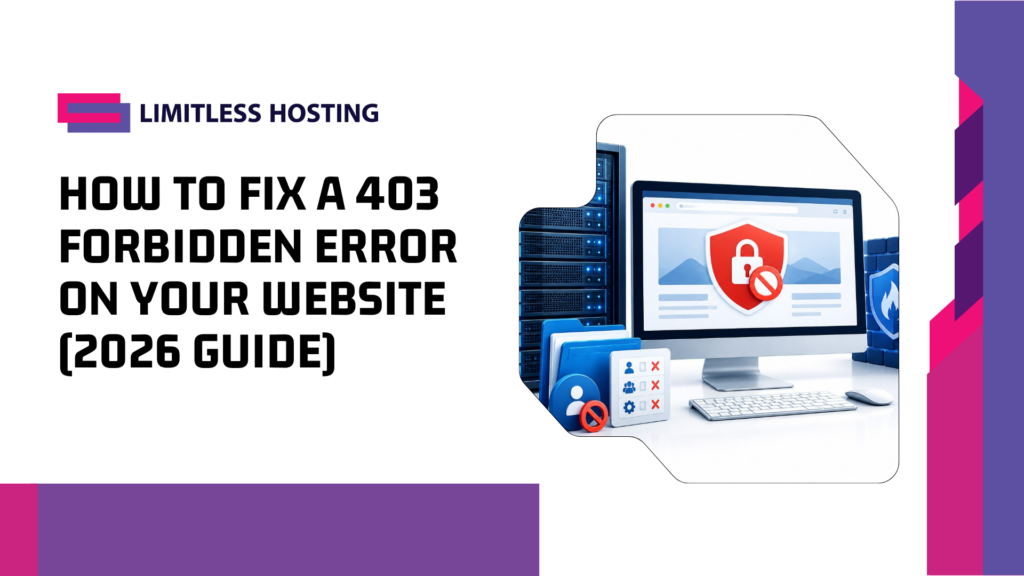
A 403 Forbidden error appears when a web server or security layer understands a request but refuses to allow access to the requested page or file. Visitors may see a plain “403 Forbidden” message, while website owners may discover that the homepage works but WordPress admin, uploads, images, or selected URLs are blocked.
The error can originate from file permissions, file ownership, a missing index file, a restrictive .htaccess rule, a WordPress security plugin, a web application firewall, CDN rules, IP restrictions, or server configuration. The right fix depends on which layer generated the response. This guide explains how to fix a 403 Forbidden error on a website, including WordPress, Apache, Nginx, cPanel, and Cloudflare scenarios, without weakening your site’s security.
What Does a 403 Forbidden Error Mean?
HTTP status code 403 means the server refuses to fulfil the request. Unlike a 404, it does not simply mean that the requested resource cannot be found. Unlike a 401, it does not necessarily mean that the visitor needs to sign in. A 403 is an access decision: the server, application, or security system has denied the request.
It is important to identify who generated the response. A 403 page branded by a CDN or firewall may come from that edge service. A plain server-generated response may come from Apache, Nginx, or another origin server. A WordPress plugin can also block a request before the page loads.
Common symptoms of a 403 error
- The whole website displays “403 Forbidden.”
- The homepage works, but one directory or file is blocked.
- WordPress visitors can browse the site, but
/wp-adminreturns 403. - Image uploads or media files are denied.
- Only one IP address, country, browser, or crawler receives the error.
- The error appears after a plugin update, migration, permission change, or firewall rule change.
Start With These Checks Before Editing Server Files
- Confirm the URL. Check for typing errors, incorrect uppercase/lowercase paths on case-sensitive servers, and links to private directories.
- Try a private browser window. This helps identify cookie, cache, or extension issues.
- Test another network. If mobile data works but office Wi-Fi does not, the IP address or network may be blocked.
- Disable VPN or proxy temporarily. A VPN exit IP may be blocked by a website’s security policy.
- Check whether the problem affects everyone. Ask another person to test the same URL and compare the result.
If you are only a visitor, these steps may be enough to identify a local restriction. If you own the website, continue with a backup and server-side diagnosis. Do not recursively change file permissions or disable every security feature without evidence.
Ready to Get Your Website Online?
Fast, reliable web hosting from Limitless Hosting. Explore our plans and find the right fit for your site.
1. Check file and directory permissions
Web servers need permission to read files and traverse directories. On many Linux hosting environments, a common baseline is 755 for directories and 644 for regular files. These are not universal values for every application or hosting configuration, but they are a useful reference when diagnosing a standard WordPress installation.
With a hosting file manager or SFTP client, inspect the document root and the path to the blocked resource. A directory without execute/traverse permission can prevent the server from reaching a file even when the file itself is readable. A file with overly restrictive permissions may also be denied.
| Resource | Common baseline | What it allows |
|---|---|---|
| Directories | 755 | Owner can read/write/traverse; others can read/traverse |
| Regular files | 644 | Owner can read/write; others can read |
| wp-config.php | Often 640 or 644, host-dependent | Must remain readable by PHP without exposing it unnecessarily |
Never set every file to 777 as a shortcut. That grants excessive write access and can create a serious security weakness. If ownership is incorrect, changing permission bits alone may not help; ask the hosting provider to confirm the correct account and web-server ownership model.
2. Check file ownership
After a migration, restore, manual upload, or command-line operation, files may belong to the wrong system user. The web server or PHP process may then be unable to read them. Check the owner and group against other working files in the same hosting account. On managed shared hosting, ask support to repair ownership rather than running recursive ownership commands copied from an unrelated server guide.
3. Inspect the .htaccess file
On Apache and LiteSpeed environments, .htaccess can contain access-control directives, rewrite rules, and security restrictions. A malformed rule or an accidental deny directive can block the entire website or selected paths. Before editing it, download a backup copy.
To test whether the file is responsible, rename the root .htaccess file to something like .htaccess-backup and retest the website. If the 403 disappears, review the rules and restore only the required directives. For WordPress, you can regenerate standard permalink rules by opening Settings, Permalinks, and saving the current structure after the site is accessible.
Do not delete unknown rules permanently. Security plugins, password-protected directories, and custom application routes may rely on them. If the 403 remains after renaming the root file, check for nested .htaccess files in the affected directory.
4. Look for a missing index file
When a visitor requests a directory, the server normally looks for a configured index file such as index.php or index.html. If directory listing is disabled and no index file exists, the server may return 403 instead of displaying a list of files. Confirm that the website’s document root contains the expected front controller or index file. Do not enable directory listing as a quick fix; it can expose private files and backups.
For an additional server-side checklist, see cPanel’s guide to common 403 website errors, which explains how permissions, ownership, and access rules can trigger the response.
How to Fix a 403 Forbidden Error in WordPress
1. Deactivate plugins safely
A security, firewall, cache, or access-control plugin may block your IP address or apply an incorrect rule. If you can access the dashboard, deactivate recently installed or updated plugins one at a time and test the affected URL. If the dashboard is blocked, use the hosting file manager or SFTP to rename the suspected plugin’s directory temporarily. Renaming the entire wp-content/plugins directory disables all plugins, so use that only as a controlled diagnostic step and restore the folder name immediately after testing.
When the site works again, restore plugins one at a time to identify the cause. Update the responsible plugin, review its allow/block lists, and remove only the rule that incorrectly blocks legitimate requests. Do not leave security plugins disabled after troubleshooting.
2. Check WordPress file permissions and ownership
Compare the permissions of WordPress core directories and files with a known-good installation and your hosting provider’s recommended settings. Check wp-admin, wp-includes, wp-content, and the files inside them. Also verify that the PHP process can read the files. A WordPress site can display its cached homepage while failing on admin or upload paths because different directories have different permissions.
3. Review security plugins and blocked IP addresses
Look for country restrictions, login protection, rate limits, allowlists, deny lists, and brute-force rules. If only your office IP receives 403, check whether that address was blocked after repeated login attempts or a false-positive security event. Remove the specific incorrect block and preserve the protections that are working as intended.
4. Check the WordPress REST API and admin paths
If the front end loads but the editor, REST API, or admin-ajax requests return 403, inspect plugin rules, web application firewall events, and server logs for the exact request path. A security rule may be blocking a request method or request body rather than the whole site. Test the relevant endpoint and review the security event timestamp before changing global firewall settings.
5. Scan for malware and unexpected changes
Malware can modify access rules, create suspicious files, change ownership, or add redirects and deny directives. If the error began unexpectedly or affects unfamiliar paths, inspect recent file changes and scan the website using a trusted security process. Restore clean files from a verified backup if compromise is confirmed, update vulnerable software, rotate credentials, and investigate the entry point before reopening the site.
Regular backups make recovery safer. Review how often to back up WordPress and keep at least one restorable copy outside the hosting account.
How to Fix 403 Errors in cPanel and Shared Hosting
In cPanel, open File Manager and navigate to the domain’s document root, often public_html or a domain-specific folder. Check whether the expected index file exists, inspect permissions, and review hidden files so that .htaccess is visible. Use the Errors interface or the hosting provider’s logs to find the request and the corresponding denial message.
Shared hosting environments apply account isolation, resource controls, and security rules at the server level. If file permissions and site rules look correct, support may need to inspect ModSecurity, Imunify360, Apache/LiteSpeed configuration, account ownership, or an IP deny rule. Provide the exact URL, timestamp, public IP address, and any request ID shown on the error page. Never send your account password in a ticket.
If you manage several client websites, keep each account’s files and permissions isolated. A reseller environment can make client administration easier, while a VPS offers more control when your workload requires custom server-level configuration. Read the DirectAdmin reseller hosting guide before choosing a management model.
How to Fix a Cloudflare or CDN 403 Error
If the error page includes Cloudflare branding or a Ray ID, inspect the CDN security events for that request. Check managed WAF rules, custom firewall rules, bot protections, IP access rules, browser integrity checks, and country restrictions. The event details should identify which rule took action.
Do not turn off the entire web application firewall just to make the page load. Create a narrow exception for the legitimate request, correct the false-positive rule, or allow a verified IP where appropriate. If the 403 page is not branded by the CDN, the origin server may be generating the response; check the origin logs and make sure CDN IP ranges are not being blocked accidentally.
For sites using a proxy or CDN, test the origin carefully and only through an approved method. Avoid exposing the origin IP publicly or bypassing protections in a way that leaves the site vulnerable.
Diagnose the Exact Cause With Server Logs
Logs are usually faster and safer than guessing. Reproduce the 403 once, note the time and URL, and inspect the matching Apache or Nginx error log entry. On managed hosting, use the control panel’s error viewer or ask support for the relevant log line.
For a server you administer, an Apache log may reveal a permission denial or a rule that refused access. Nginx logs may identify a denied location, access rule, or missing index. If the response came from a WAF or CDN, inspect its security event log rather than relying only on the origin access log.
# Example: watch an Apache error log on a server you administer
tail -f /var/log/apache2/error.log

# Example: inspect an Nginx error log
tail -f /var/log/nginx/error.log
Log paths differ by distribution and hosting stack. These commands require shell access and should not be run on a shared account without the provider’s guidance. The key is to match the timestamp and requested resource to a specific denial reason.
How 403 Errors Affect SEO and Website Availability
A temporary 403 for a private admin page is normal. A persistent 403 on public landing pages, product pages, images, or important resources can prevent visitors and search crawlers from accessing content. If Googlebot is blocked by an accidental firewall rule, crawling and indexing may be affected. A site audit may also report 403 URLs when its crawler is denied.
Do not whitelist every crawler based only on its user-agent string; user-agent values can be spoofed. Verify legitimate crawler requests using the search engine’s published verification process, then adjust the relevant rule. Monitor public pages after making changes and confirm that private or sensitive directories remain protected.
Prevent 403 Forbidden Errors From Returning
- Keep a current backup before changing permissions, plugins, or access rules.
- Document the correct file ownership and permission baseline for your hosting environment.
- Update WordPress core, themes, plugins, and server software.
- Review WAF and security events before creating broad allow or deny rules.
- Test website migrations with a staging copy and verify document roots and ownership.
- Keep an index file in every public directory that should serve a page.
- Monitor public URLs and critical admin workflows after security changes.
- Use least-privilege permissions; never use 777 as a general repair.
Reliable hosting, current software, and a clear support process reduce the time required to diagnose access errors. For broader performance and availability planning, see why fast website loading speed matters and what web hosting malware protection should cover.
When to Contact Your Hosting Provider
Escalate the issue when the logs show an ownership mismatch, server-level access rule, ModSecurity false positive, blocked CDN address, or configuration you cannot safely change. Share the affected URL, timestamp and timezone, your public IP, the steps already tested, and whether the issue affects all visitors. Ask support to identify the component returning the 403 and the exact rule or permission involved.
If the website is compromised, files are missing, or the denial appears across multiple unrelated directories, treat the issue as a potential security incident. Preserve logs and backups, avoid deleting evidence, and work with the hosting provider to restore a clean and secure environment.
Conclusion
To fix a 403 Forbidden error, identify which layer is denying access before changing settings. Check the URL and network first, then inspect file permissions, ownership, index files, .htaccess, WordPress plugins, server logs, and CDN or WAF events. Use the log entry to make a targeted correction, keep a backup, and avoid insecure shortcuts such as setting everything to 777 or disabling all firewall protection.
For a website that depends on consistent availability, choose hosting with clear account isolation, security controls, and responsive technical support. Explore Limitless Hosting to compare hosting options for websites, agencies, and growing online businesses.
Frequently Asked Questions
1. What is the most common cause of a 403 Forbidden error?
Common causes include incorrect file permissions or ownership, restrictive .htaccess rules, a missing index file, security plugins, IP blocks, and firewall rules. The exact cause depends on which component generated the response, so check the matching server or security log.
2. How do I fix a 403 Forbidden error in WordPress?
Back up the site, then check file permissions and ownership, temporarily test whether a plugin is blocking the request, and inspect the root and nested .htaccess files. Review security plugin and WAF events before making changes permanent.
3. Are 755 and 644 the correct WordPress permissions?
They are common baseline permissions for directories and regular files on many Linux hosting environments. The correct settings can vary by PHP handler, ownership model, and host policy. Follow your provider’s guidance and never set all files to 777.
4. Why does my homepage work but wp-admin show 403?
A security plugin, IP restriction, nested access rule, or WAF policy may target the admin path specifically. Check the security events and server logs for the blocked request instead of changing permissions across the entire site.
5. Can Cloudflare cause a 403 error?
Yes. Cloudflare WAF rules, custom firewall rules, security settings, or bot protections can block a request. Use the Ray ID and security event log to identify the rule, then make a narrow correction rather than disabling the full firewall.
6. Does a 403 error hurt SEO?
It can if important public pages or resources remain inaccessible to search engines. A 403 on private admin areas is expected, but accidental blocks on public URLs can prevent crawling and affect visibility. Verify crawler traffic before changing access rules.
7. Should I contact my hosting provider for a 403 error?
Yes, when logs point to server-level permissions, ownership, ModSecurity, firewall, or configuration issues that you cannot safely manage. Provide the URL, timestamp, IP address, and troubleshooting steps so support can trace the exact denial.
Latest Posts:
- How to Migrate Your WordPress Site to a New Host Without Downtime
- How to Fix DNS_PROBE_FINISHED_NXDOMAIN: Complete Website Owner’s Guide
- How to Fix a 403 Forbidden Error on Your Website (2026 Guide)
- Over 70% of the Internet Under Threat: Unauthenticated “PHP2Shell” RCE Vulnerabilities Exploded Online (CVE-2026-109618 & CVE-2026-109619)
- How Much Storage Does a WordPress Website Need?