
If you run a website, few moments induce as much panic as waking up to a blank screen, a database connection error, or a notification that your site has been compromised. Whether caused by an incompatible plugin update, a rogue script, a security breach, or hardware failure, website disasters happen. When they do, your backup strategy is the only thing standing between a minor 10-minute inconvenience and the permanent loss of years of work, customer records, and revenue.
The core question every site owner faces is straightforward: How Often Should I Back Up WordPress?
The short answer is: It depends on how frequently your content and database change. A static brochure site for a local plumber requires a very different backup frequency than a busy WooCommerce store processing hundreds of orders per hour.
In this comprehensive guide, we will break down the exact backup schedules required for different types of WordPress sites, explain the difference between file and database backups, explore automated vs. manual methods, and help you build a resilient, fail-safe disaster recovery plan.
Why WordPress Backup Frequency Matters: RPO and RTO
To determine your ideal backup schedule, it helps to understand two foundational concepts from disaster recovery planning:
- Recovery Point Objective (RPO): The maximum age of files or data that must be recovered from backup storage for normal operations to resume after a disaster. In plain terms: How much data can you afford to lose? If you back up once a week and your site crashes on day six, your RPO is six days of lost posts, orders, comments, and configuration changes.
- Recovery Time Objective (RTO): The maximum acceptable amount of time that your website can be down after a failure. In plain terms: How fast do you need to be back online?
If losing a single WooCommerce order or a newly published article will harm your business revenue or reputation, your Recovery Point Objective must be near zero—meaning you need real-time or hourly backups. If losing a week’s worth of minor text edits is an acceptable inconvenience, a weekly backup strategy may suffice.
Recommended WordPress Backup Frequency by Site Type
No single backup schedule fits every website. Below is a detailed breakdown of site categories and their recommended backup routines.
1. E-Commerce Stores (WooCommerce, Easy Digital Downloads)
- Database Backup Frequency: Real-Time, Hourly, or Every 4 Hours
- Full File Backup Frequency: Daily
- Retention Period: 30 to 90 Days
E-commerce websites handle dynamic transactional data continuously. When a customer places an order, a new user account is created, inventory counts decrement, payment gateway tokens are generated, and transaction logs are written to the database.
If an e-commerce store backed up daily at midnight crashes at 11:00 PM, 23 hours of customer orders and payment records are lost. Restoring a traditional daily backup would wipe out transactions that occurred throughout the day, forcing manual re-entry and triggering severe customer trust issues. E-commerce sites require continuous real-time or high-frequency database backups paired with daily full site snapshots.
2. High-Traffic Blogs, News Portals, and Online Magazines
- Database Backup Frequency: Twice Daily or Daily
- Full File Backup Frequency: Weekly
- Retention Period: 30 Days
Content-driven portals publishing multiple articles per day generate constant database changes (new posts, media metadata, user comments, tag updates, and SEO configurations). Losing a full day of editorial output slows productivity and harms content scheduling.
For active media sites, schedule database backups to run at least once or twice daily (e.g., after major publishing shifts), with full media file backups executed weekly.
3. Membership Sites, Forums, and LMS Platforms
- Database Backup Frequency: Hourly or Daily (depending on active user volume)
- Full File Backup Frequency: Daily or Weekly
- Retention Period: 30 to 60 Days
Sites utilizing plugins like BuddyPress, MemberPress, LearnDash, or bbPress accumulate continuous user-generated data. Course progress tracking, forum discussions, private messages, and subscription statuses reside inside the WordPress database.
Similar to e-commerce, losing database history resets user progress and member authentication tokens. Daily database backups are the absolute bare minimum, with hourly DB backups recommended for active communities.
4. Small Business Websites and Corporate Portfolios
- Database Backup Frequency: Weekly or Daily (if updated frequently)
- Full File Backup Frequency: Monthly or On-Demand (before updates)
- Retention Period: 14 to 30 Days
For small business websites that serve as online brochures—displaying business hours, service lists, contact forms, and occasional team updates—content updates happen infrequently.
A weekly database backup combined with a monthly full file backup is usually sufficient. However, an on-demand backup must always be executed immediately before updating WordPress core, themes, or active plugins. Learn more about maintaining small business web infrastructure in our article on whether shared hosting is good for small businesses.
5. Personal Blogs and Portfolio Sites
- Database Backup Frequency: Weekly or Fortnightly
- Full File Backup Frequency: Monthly
- Retention Period: 14 Days
If you publish new content once or twice a month, running heavy daily backups wastes storage space and bandwidth. Set up automated weekly database snapshots and run full backups prior to executing maintenance routines.
Backup Frequency Matrix
The following summary table outlines the recommended backup frequencies, storage requirements, and trigger conditions across website profiles:
| Website Category | Database Backup | Full File Backup | Recommended Storage Location | Trigger Events for Extra Backup |
| WooCommerce / E-Commerce | Real-time or Hourly | Daily | Offsite Cloud (S3, Wasabi) | Before sales events, plugin updates |
| High-Traffic News / Media | Twice Daily | Weekly | Offsite Cloud + Server Local | Before core/theme updates |
| Membership / LMS Forums | Every 4 to 12 Hours | Daily | Offsite Cloud | Before updating membership plugins |
| Small Business Sites | Weekly | Monthly | Offsite Cloud or Remote FTP | Before any plugin or theme update |
| Personal Blogs / Portfolios | Fortnightly / Monthly | Quarterly | Cloud Drive (Google Drive, Dropbox) | Before major layout re-designs |
Anatomy of a WordPress Backup: Database vs. Files
A complete WordPress site consists of two distinct components. Understanding how they differ explains why you should back them up on separate schedules.
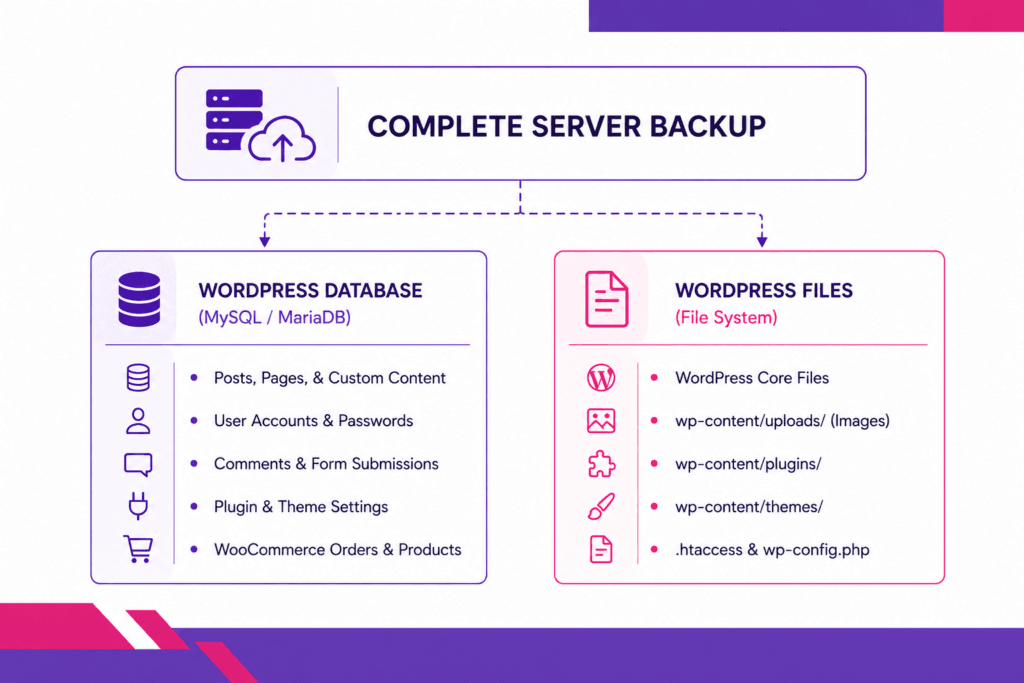
1. The WordPress Database (MySQL / MariaDB)
The database stores all dynamic information. Every time you write a blog post, save a setting, receive a contact form submission, change a password, or sell a product, WordPress writes that record into its MySQL or MariaDB database tables.
- Size: Relatively small (typically between 10 MB and 500 MB for average sites).
- Change Rate: High (changes continuously based on user traffic and activity).
- Backup Priority: Critical and High Frequency. Because of its small file size, backing up the database hourly or daily requires minimal server resources and storage space.
2. The WordPress File System
The file system consists of all the static files stored on your web server’s storage drive:
- WordPress Core Files: Files like
wp-login.php,index.php, and thewp-includesandwp-admindirectories. These can be re-downloaded fresh from WordPress.org at any time. - Configuration Files:
wp-config.php(contains database connection strings and secret keys) and.htaccessornginx.conf(contains server rewrite rules). - The
wp-contentDirectory: Contains your uploaded media files (uploads/), active and inactive themes (themes/), and installed plugins (plugins/). - Size: Large (ranging from 500 MB to tens of gigabytes due to high-resolution images, PDFs, and video assets).
- Change Rate: Low to Moderate (changes only when you upload media or install/update themes and plugins).
- Backup Priority: Moderate Frequency. Because file system backups consume substantial storage and bandwidth, running full file backups weekly or monthly—supplemented by daily database backups—is standard best practice.
The 3-2-1 Backup Strategy for Webmasters
Frequency is only half of the backup equation; location and redundancy complete it. Storing your site backups on the exact same server hosting your live website is an invitation to total data loss. If your server’s storage drive fails, or if a malware infection encrypts your file system, both your live site and your backups disappear simultaneously.
To ensure true disaster resilience, follow the industry-standard 3-2-1 Backup Strategy:
- Maintain 3 Copies of Your Data: The live production website plus at least 2 distinct backup copies.
- Use 2 Different Storage Media Types: For example, web server local storage combined with object cloud storage.
- Keep 1 Copy Offsite: At least one backup copy must be stored offsite in an isolated cloud environment (e.g., Amazon S3, Google Cloud Storage, Wasabi, Dropbox, or a secondary backup server) physically separate from your primary web host.
Methods for Implementing Automated WordPress Backups
You can implement your recommended backup schedule using three primary methods: host-level automated snapshots, dedicated WordPress backup plugins, or manual server-level scripts.
Method 1: Host-Level Server Snapshots (The Most Reliable Method)
Host-level backups run directly on the underlying web server operating system, independent of WordPress execution limits, PHP execution timeouts, or memory caps.
When you host your site on modern server management panels like DirectAdmin or cPanel, automated server backups run background processes that create full compressed archives of your home directory and database dumps.
- Pros: Zero impact on WordPress front-end site speed; works even if WordPress core is completely broken or infected with malware; includes email accounts, DNS zone files, and server configurations.
- Cons: Managed by the web hosting environment; storage space may count against your hosting allocation unless offsite backup routing is configured.
At Limitless Hosting, we provide automated host-level backup capabilities across our server offerings.
Method 2: WordPress Backup Plugins
Plugins provide a user-friendly interface directly inside the WordPress dashboard. Popular options include:
- UpdraftPlus: Allows scheduled database and file backups pushed directly to remote cloud destinations (Google Drive, Dropbox, Amazon S3).
- BlogVault: Uses offsite server processing to deliver real-time database tracking without slowing down host server resources.
- Jetpack VaultPress: Offers daily or real-time cloud backups with one-click restoration triggers.
- Pros: Easy to configure; automated offsite cloud integration; simple user-level interface.
- Cons: High resource utilization on shared hosting during zip compression; can fail on massive sites with large database tables due to PHP memory limits (
memory_limit).
To prevent performance drops when plugins run backup scripts, make sure your hosting environment operates on fast hardware. Learn more about high-speed storage in our definitive guide on SSD server storage.
Method 3: Manual Backups via Control Panel & SSH
For developer workflows, running manual backups via command line (SSH) or control panel database tools provides absolute precision.
Exporting the Database via SSH (WP-CLI):
# Navigate to the WordPress root installation directory
cd /home/username/public_html

# Export the database to a compressed SQL file
wp db export --add-drop-table backup-$(date +%Y-%m-%d).sql

# Compress the export for secure offsite transfer
gzip backup-$(date +%Y-%m-%d).sql
Compressing the File System via Terminal:
# Create a tarball of the public_html directory, excluding cache folders
tar --exclude='public_html/wp-content/cache/*' -czvf site-files-$(date +%Y-%m-%d).tar.gz public_html/
Manual backups are ideal to run immediately before performing major software updates or server migrations.
Combining Backups with Active Domain & Security Monitoring
A backup is a reactive recovery tool—it helps you rebuild after a failure has occurred. However, if your website goes down, suffers a malicious DNS hijack, or experiences an expired SSL certificate, hours or days might pass before you notice the problem if you do not actively monitor your infrastructure.
By the time you discover that a server crash occurred three days ago, you may have missed valuable customer orders or suffered major search engine ranking drops.
This is why experienced system administrators pair automated backup routines with proactive external monitoring tools. Utilizing Aepto for real-time domain monitoring, automated uptime tracking, and DNS change detection ensures you are alerted immediately if your domain stops resolving or experiences unexpected configuration shifts.
If external monitoring detects downtime or unauthorized DNS modifications, you can inspect your system, isolate the cause, and restore your latest clean backup before significant damage occurs.
5 Common WordPress Backup Mistakes to Avoid
Even webmasters who run backups regularly can find themselves unable to recover their sites due to critical implementation flaws. Avoid these common pitfalls:
1. Storing Backups on the Same Web Server Disk
Saving backup zip files in wp-content/uploads/backups/ on the same server partition is dangerous. If your server storage gets corrupted, or if a hacker gains root access and wipes your filesystem, both your live site and your backups will be erased simultaneously. Always route backups to remote, offsite cloud storage.
2. Never Testing Backup Restoration
A backup file is completely useless until you have verified that it can be successfully restored. Frequently, site owners download a .tar.gz or .zip backup archive only to discover later that the database dump was truncated mid-way through due to a PHP execution timeout.
- Action Item: At least once every quarter, download your latest backup archive, set up a local testing environment (using LocalWP or a staging server), and execute a full test restore to confirm data integrity.
3. Ignoring Database Bloat and Spam Comments
If your WordPress database is filled with hundreds of thousands of spam comments, post revisions, and leftover transients from deleted plugins, your database backups will take longer to complete and consume unnecessary storage.
Regularly clean your database using plugins like WP-Optimize or WP-Sweep to keep database sizes lean, making high-frequency backups fast and lightweight.
4. Overlooking Security Vulnerabilities During Restoration
If your site was hacked and you restore a backup created three days ago, you may be restoring the hidden backdoors and malware alongside your content.
Whenever you restore a site after a security breach, perform a complete security audit, clear core files, update all passwords and database keys (wp-config.php salts), and scan the file system. Learn more about protecting your site in our guide on WordPress security attacks and prevention.
5. Relying Exclusively on “Free Web Host Backups”
While reputable hosting providers maintain emergency disaster recovery backups at the host node level, these backups are designed primarily for hardware-level recovery. They may not be taken on a schedule that aligns with your specific RPO needs, and access to host-level restores may take time during peak incident periods.
Always maintain independent, user-controlled offsite backups in addition to your host’s infrastructure snapshots.
Blazing Fast Shared Hosting.
Experience Next-Level Hosting with NVMe SSD, LiteSpeed Web Server, Imunify360, and JetBackups.
Step-by-Step: How to Restore a WordPress Backup Correctly
When disaster strikes, following a clear, structured restoration sequence prevents secondary data loss and minimizes downtime.
How Limitless Hosting Simplifies WordPress Backups & Performance
Building a robust WordPress backup strategy requires a stable hosting platform engineered for high reliability, fast disk operations, and reliable server resources.
At Limitless Hosting, we provide hosting environments designed to make backup operations seamless:
- Automated Server Backups: Our platform handles regular infrastructure snapshots so you always have a rollback point.
- High-Speed NVMe Storage: Fast read/write performance ensures that large file zip compression and database exports execute rapidly without timing out.
- Managed VPS & Dedicated Resources: For resource-intensive e-commerce and high-traffic WordPress sites, isolated virtual environments guarantee dedicated RAM and CPU cycles for effortless backup processing.
- Integrated Malware Protection: Prevent data corruption before it starts. .
- Performance Optimization: Fast backups lead to fast sites. Read our expert tips on how to improve my WordPress site speed.
How Often Should I Back Up WordPress: Conclusion
So, how often should you back up WordPress?
- Real-time or Hourly: E-commerce stores, active membership platforms, and high-volume transaction sites.
- Daily: Active blogs, news portals, medium-traffic sites, and any site with daily content edits.
- Weekly: Low-traffic small business sites, personal portfolios, and brochure sites.
- On-Demand (Mandatory): Immediately before running core, theme, or plugin updates, or editing server configuration files.
By combining the 3-2-1 backup strategy with host-level snapshots, remote offsite cloud storage, and real-time external monitoring via tools like Aepto.com, you ensure your WordPress site remains completely resilient against hardware failures, security breaches, and human error.
Ready to secure your WordPress sites on high-performance infrastructure? Explore our managed hosting plans at Limitless Hosting today!
Frequently Asked Questions (FAQs)
Should I back up WordPress before updating plugins?
Yes, absolutely. Plugin updates are one of the most common causes of WordPress site crashes due to PHP version incompatibilities, script conflicts, or core code changes. Always create an on-demand database and file backup before hitting the “Update” button on any plugin, theme, or core WordPress release.
Does my web host already back up my WordPress site automatically?
Many high-quality web hosts (including Limitless Hosting) provide automated infrastructure backups. However, host-level backups are meant to serve as a safety net for hardware recovery or full account restoration. You should always maintain your own independent offsite backups to control your restoration timeline and data access.
How long should I keep old WordPress backups?
Retention periods depend on your storage capacity and regulatory requirements. As a rule of thumb: keep daily backups for 7 to 14 days, weekly backups for 4 weeks, and monthly backups for 3 to 6 months. E-commerce platforms should archive transactional database records for longer periods for tax and auditing compliance.
Will running frequent backups slow down my WordPress website?
If you use a heavy WordPress backup plugin on a low-resource shared hosting server, zip file compression can temporarily spike CPU and RAM usage, causing front-end page slowdowns. To avoid this, schedule automated backups during low-traffic off-peak hours (e.g., 2:00 AM), offload processing to external APIs (like BlogVault), or rely on host-level server snapshots that run independently of PHP.
Can I back up WordPress for free?
Yes. Plugins like UpdraftPlus offer robust free tiers that allow you to schedule automated database and file backups to free offsite cloud destinations like Google Drive or Dropbox. Alternatively, you can generate free manual backups by exporting your database via phpMyAdmin and downloading your site files via FTP or your web hosting control panel.
What is the difference between a full backup and an incremental backup?
A full backup copies every file and database table every time it runs, which consumes significant storage and time. An incremental backup creates one initial full backup and then only copies files or database tables that have changed since the last backup ran. Incremental backups save storage, reduce server overhead, and allow for near real-time tracking.
Read our latest posts:
- Black Friday Web Hosting Deals 2026: How to Tell a Real Discount From a Renewal Trap
- How to Migrate Your WordPress Site to a New Host Without Downtime
- How to Fix DNS_PROBE_FINISHED_NXDOMAIN: Complete Website Owner’s Guide
- How to Fix a 403 Forbidden Error on Your Website (2026 Guide)
- Over 70% of the Internet Under Threat: Unauthenticated “PHP2Shell” RCE Vulnerabilities Exploded Online (CVE-2026-109618 & CVE-2026-109619)